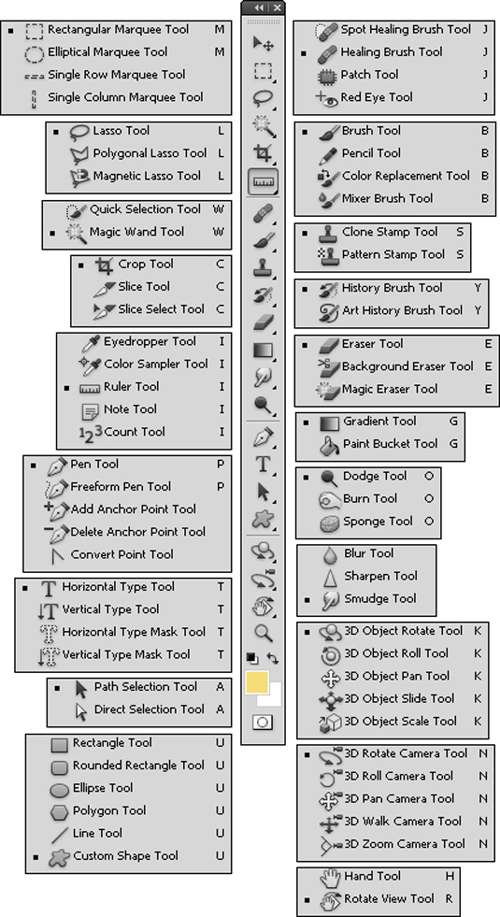
- Marquee - Selects an object by drawing a rectangle or an ellipse around
it. Click the tool button, choose a rectangular or an elliptical
marquee. Drag the marquee over the area of the image you
wish to select.
- Move tool - Used to select and move objects on the page.
Click the tool button, then click on any object on the page you
wish to move.
- Lasso tool - Selects an object by drawing a freehand border around it.
Click the tool button, drag to draw a freehand border around
the are of the image you wish to select.
- Polygonal Lasso tools - Selects an object by drawing a straight-edge border around it.
Click the tool button, click on the starting point on the image,
drag to draw a straight-edge border, click and drag again to
select the are of the image you wish to select. Double-click to
finish.
- Magnetic Lasso tools - Selects an object by drawing a border that snaps to the edges
of the defined area of the object. Click on the starting point on the image, drag around the are of
the image. The tool will make fastening points at the edges. To
finish selecting, drag the border to the starting point and click
precisely in the point.
- Magic Wand tools - Selects all objects in a document with the same or similar fill
color, stroke weight, stroke color, opacity, or blending mode.
By specifying the color range, or tolerance, you can control
what the Magic Wand tool selects.
Click the tool button, then click on the area of the image you
wish to select.
- Crop Tool - Selects and cuts parts of an image.
Click the tool button, then click and drag the tool over the part
of the image that you want to keep. Resize the selected area
dragging the squares at the sides and corners. Click the
RETURN key when your crop box is sized correctly.
- Slice Tool - Used to cut images into slices, which can be exported to a web
page.
|